
WordPress Template Hierarchy sits right at the heart of every WordPress theme, whether it’s Full Site Editing (FSE) or a Classic theme. A template structure is a predefined file structure with a must-follow file naming convention. This article discusses everything that you need to start building your awesome WordPress theme.
Before diving deeper into WordPress Template Hierarchy, let’s have a quick look at the essential components of a typical WordPress theme. The following image represents how a WordPress theme looks like in the browser.
A typical WordPress Classic theme is composed of three major structural segments. Even in modern Full Site Editing (Block themes), this structure remains the same. However, instead of .php files, Block Themes use .html template files. In Part-II of this article, we will discuss more about it. At the moment, let’s understand the following structural elements of Classic themes.
- Header (
header.php): As the name suggests, this represents the top aka header section of a website. A header section typically contains the primary navigation system, a hero section with a big picture or even a carousel, and in most cases social handles and contact options. In the Template Hierarchy, theheader.phpis known as the header template. Ideally this section and its content remains constant throughout the website. - Content (
index.php): This segment is responsible to display the currently requested content, such as detailed information from a page, post, or book post type. The Content segment can also be divided into different sub-sections, like Sidebar-Left, Sidebar-Right, etc. Unlike Header and Footer templates, a content template is used to serve dynamic data. A dynamic information could either be pulled from the database or fetched through an API. - Footer (
footer.php): The section of the website that appears at the bottom. Like Header, the FOOTER template also appears on every page of the website. This usually holds links, may be the logo, or a subscribe text box.
A side-by-side representation of how the HTML code and rendered output look like
<header>
    <logo></logo>
    <nav></nav>
    <searchbar></searchbar>
    <social-links></social-links>
</header>
<section>
    <sidebar-left></sidebar-left>
    <content></content>
    <sidebar-right></sidebar-right>
</section>
<footer>
    <logo></logo>
    <quick-links></quick-links>
    <subscribe></subscribe>
</footer>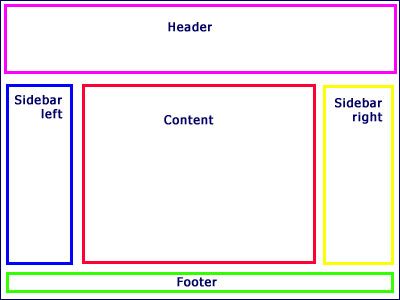
What is WordPress Template Hierarchy?
The foundation of any WordPress website is basically built upon two top level entities – Post Type and Taxonomy. Upon installation, WordPress provides us with two default Post Types: Page and Post. However, other Post Types can also be created later, like Book, Product, Song, etc. Similarly, two default Taxonomies are Category and Tag. Like Post Types, custom Taxonomies can also be created at any point and according to the need.
Because there are multiple Post Types and Taxonomies, to avoid any conflict, WordPress uses a unique prioritized file naming convention to decide which template file to use to render a specific piece of information. This decision making methodology, as a whole, is known as the “WordPress Template Hierarchy”.
How WordPress Template Hierarchy Works?
I believe, no we can jump into the actual Template Hirerchy flow. Let’s understand how the hierarchy system moves from template to template and finally falls back to index.php, if ther is no template available for a specific piece of content.
The following list of templates demonstrates how WordPress follows the exact order of the priority from the highest to the final fallback template, i.e. index.php. The final template is always at the lowest priority order and is only hit when no template of higher order is available.
Page Template Hierarchy
page-{slug}.phppage-{id}.phppage.phpsingular.phpindex.php
Example: Page name: Contact Us, Page ID: 204
- WordPress looks into the active theme folder for a template
page-contact-us.php - If this template is not available, WordPress searches for
page-204.php - If that too is not available, the next template it tries to land on is
page.php - Still not found? Next template in hierarchy is
singular.php - When all four templates are absent, WordPress has no other option than to land on the final fallback template
index.php.
Post / Custom Post Type (CPT) Hierarchy
single-{post_type}-{slug}.phpsingle-{post_type}.phpsingle.phpsingular.phpindex.php
Example: Post name: Junglebook, Post Type: Book
- WordPress looks into the active theme folder for a template
single-book-junglebook.php - If this template is not available, WordPress searches for
single-book.php - If that too is not available, the next template it tries to land on is
single.php - Still not found? Next template in hierarchy is
singular.php - When all four templates are absent, WordPress has no other option than to land on the final fallback template
index.php.
Taxonomy / Archive Hierarchy
taxonomy-{taxonomy}-{term}.phptaxonomy-{taxonomy}.phptaxonomy.phparchive.phpindex.php
Example: Custom Taxonomy: Adventure, Term: Jungle
- WordPress looks into the active theme folder for a template
taxonomy-adventure-jungle.php - If this template is not available, WordPress searches for
taxonomy-adventure.php - If that too is not available, the next template it tries to land on is
taxonomy.php - Still not found? Next template in hierarchy is
archive.php - When all four templates are absent, WordPress has no other option than to land on the final fallback template
index.php.
